MariaDB Enterprise Manager testing
Table of contents
Preamble
For more than a decade we use SQL Diagnostic Manager for MySQL (ex Monyog) to monitor the performances of our MariaDB instances. This product was included in our corporate contract since the beginning, more than 15 years ago. The MariaDB corporation has tried to replace it by MariaDB Remote Observability Service. When I was trying the product 2 years ago I got informed by MariaDB support that the product got discontinued while they were on this financial storm…
They come back again with tentative to replace Monyog with MariaDB Enterprise Manager.
Disclaimer:
MariaDB Enterprise Manager is NOT certified with Podman, I have discussed with them and it is in their plan to support podman as a drop-in replacement of Docker.
I have tried to use Podman in first place. Even with the podman-docker package, but the list of errors to overcome is too complex… One example is the missing /home/mariadb/.docker/config.json file that Docker Engine is created while Podman does things differently…
I initially thought Docker was non free but what is still free is the Docker Engine.
My trial has been made with two virtual machines Oracle Linux Server release 9.7:
- server01.domain.com with non-routable IP address 192.168.56.101 running MariaDB Community edition 12.1.2
- server03.domain.com with non-routable IP address 192.168.56.103 running MariaDB Enterprise Manager 1.2.2
Overall the product is good but as based on Prometheus and Grafana it is really similar of what I have already tested. The MEMA agent is simply the MySQL exporter I have used. With a pure Promethus/Grafana setup I would say that you got more flexibility to add other database flavors exporter to your infrastructure and be more Enterprise wise…
MariaDB Enterprise Manager repository setup
Repository setup
Configure the Docker engine repo with:
[root@server03 ~]# dnf config-manager --add-repo https://download.docker.com/linux/rhel/docker-ce.repo
Adding repo from: https://download.docker.com/linux/rhel/docker-ce.repo
[root@server03 ~]# dnf repolist
repo id                                                                                                                                    repo name
docker-ce-stable                                                                                                                           Docker CE Stable - x86_64
ol9_UEKR7                                                                                                                                  Oracle Linux 9 UEK Release 7 (x86_64)
ol9_appstream                                                                                                                              Oracle Linux 9 Application Stream Packages (x86_64)
ol9_baseos_latest                                                                                                                          Oracle Linux 9 BaseOS Latest (x86_64)
Install the Docker packages:
[root@server03 ~]# dnf -y install docker-ce docker-ce-cli containerd.io docker-buildx-plugin docker-compose-plugin
.
.
.
[root@server03 ~]# systemctl start docker
[root@server03 ~]# systemctl status docker
● docker.service - Docker Application Container Engine
     Loaded: loaded (/usr/lib/systemd/system/docker.service; disabled; preset: disabled)
     Active: active (running) since Thu 2026-02-05 16:31:23 CET; 4s ago
TriggeredBy: ● docker.socket
       Docs: https://docs.docker.com
   Main PID: 3450 (dockerd)
      Tasks: 10
     Memory: 30.5M (peak: 32.3M)
        CPU: 947ms
     CGroup: /system.slice/docker.service
             └─3450 /usr/bin/dockerd -H fd:// --containerd=/run/containerd/containerd.sock

Feb 05 16:31:22 server03 dockerd[3450]: time="2026-02-05T16:31:22.538202513+01:00" level=info msg="Deleting nftables IPv4 rules" error="exit status 1"
Feb 05 16:31:22 server03 dockerd[3450]: time="2026-02-05T16:31:22.558276414+01:00" level=info msg="Deleting nftables IPv6 rules" error="exit status 1"
Feb 05 16:31:23 server03 dockerd[3450]: time="2026-02-05T16:31:23.502516107+01:00" level=info msg="Loading containers: done."
Feb 05 16:31:23 server03 dockerd[3450]: time="2026-02-05T16:31:23.546626965+01:00" level=info msg="Docker daemon" commit=6bc6209 containerd-snapshotter=true storage-driver=overlayfs version=29.2.1
Feb 05 16:31:23 server03 dockerd[3450]: time="2026-02-05T16:31:23.546996772+01:00" level=info msg="Initializing buildkit"
Feb 05 16:31:23 server03 dockerd[3450]: time="2026-02-05T16:31:23.575974853+01:00" level=warning msg="git source cannot be enabled: failed to find git binary: exec: \"git\": executable file not found in $PATH"
Feb 05 16:31:23 server03 dockerd[3450]: time="2026-02-05T16:31:23.584623794+01:00" level=info msg="Completed buildkit initialization"
Feb 05 16:31:23 server03 dockerd[3450]: time="2026-02-05T16:31:23.600434694+01:00" level=info msg="Daemon has completed initialization"
Feb 05 16:31:23 server03 systemd[1]: Started Docker Application Container Engine.
Feb 05 16:31:23 server03 dockerd[3450]: time="2026-02-05T16:31:23.600963190+01:00" level=info msg="API listen on /run/docker.sock"
Configure Docker to act behind your proxy:
[root@server03 ~]# mkdir -p /etc/systemd/system/docker.service.d
[root@server03 ~]# vi /etc/systemd/system/docker.service.d/proxy.conf
[root@server03 ~]# cat /etc/systemd/system/docker.service.d/proxy.conf
[Service]
Environment="HTTP_PROXY=http://proxy.mycorp.com:8080"
Environment="HTTPS_PROXY=http://proxy.mycorp.com:8080"
Environment="NO_PROXY=localhost,127.0.0.1,::1,.mycorp.com,10.0.0.0/8,192.168.0.0/16"
Environment="http_proxy=http://proxy.mycorp.com:8080"
Environment="https_proxy=http://proxy.mycorp.com:8080"
Environment="no_proxy=localhost,127.0.0.1,::1,.mycorp.com,10.0.0.0/16"
[root@server03 ~]# systemctl daemon-reload
[root@server03 ~]# systemctl restart docker
[root@server03 ~]# systemctl show --property=Environment docker
Environment="HTTP_PROXY=http://proxy.mycorp.com:8080" "HTTPS_PROXY=http://proxy.mycorp.com:8080" NO_PROXY=localhost,127.0.0.1,::1,.st.com,10.0.0.0/8,192.168.0.0/16
"http_proxy=http://proxy.mycorp.com:8080" "https_proxy=http://proxy.mycorp.com:8080" no_proxy=localhost,>
[root@server03 etc]# docker search mariadb
NAME                                         DESCRIPTION                                     STARS     OFFICIAL
mariadb                                      MariaDB Server is a high performing open sou…   6077      [OK]
mariadb/maxscale                             MariaDB MaxScale - The world's most advanced…   38
mariadb/columnstore                          MariaDB ColumnStore Engine for Analytics        4
mariadb/mariadb-operator-enterprise          For use with MariaDB Operator https://github…   0
mariadb/mariadb-prometheus-exporter-ubi      For use with MariaDB Operator https://github…   1
mariadb/maxscale-prometheus-exporter-ubi                                                     0
bitnami/mariadb                              Bitnami Secure Image for mariadb                206
mariadb/mariadb-enterprise-operator-bundle                                                   0
mariadb/mariadb-enterprise-operator-index                                                    0
circleci/mariadb                             CircleCI images for MariaDB                     5
bitnamicharts/mariadb                        Bitnami Helm chart for MariaDB                  0
mariadb/cloud-native-runner                  Cloud Native Runner is used in the internal …   0
linuxserver/mariadb                          A Mariadb container, brought to you by Linux…   411
mariadb/developers                           Docker demo images to support sample code an…   0
cimg/mariadb                                                                                 0
elestio/mariadb                              Mariadb, verified and packaged by Elestio       2
chainguard/mariadb                           Build, ship and run secure software with Cha…   0
docksal/mariadb                              MariaDB service images for Docksal - https:/…   0
uselagoon/mariadb                                                                            0
islandora/mariadb                            Open source relational database.                0
corpusops/mariadb                            https://github.com/corpusops/docker-images/     0
alpinelinux/mariadb                                                                          0
alpine/mariadb                                                                               4
openeuler/mariadb                                                                            0
webhippie/mariadb                            Docker image for MariaDB                        24
Add the account with which you plan to install MariaDB Enterprise Manager to the docker group:
[root@server03 mariadb]# usermod --append --groups docker mariadb
As I am behind a corporate proxy I had to setup few proxy variables:
export HTTP_PROXY='http://proxy_account:proxy_password@proxy.mycorp.com:8080'
export HTTPS_PROXY='http://proxy_account:proxy_password@proxy.mycorp.com:8080'
export NO_PROXY='localhost,127.0.0.1,::1,.mycorp.com,10.0.0.0/8,192.168.0.0/16'
Then get your customer token id at https://customers.mariadb.com/downloads/token/:
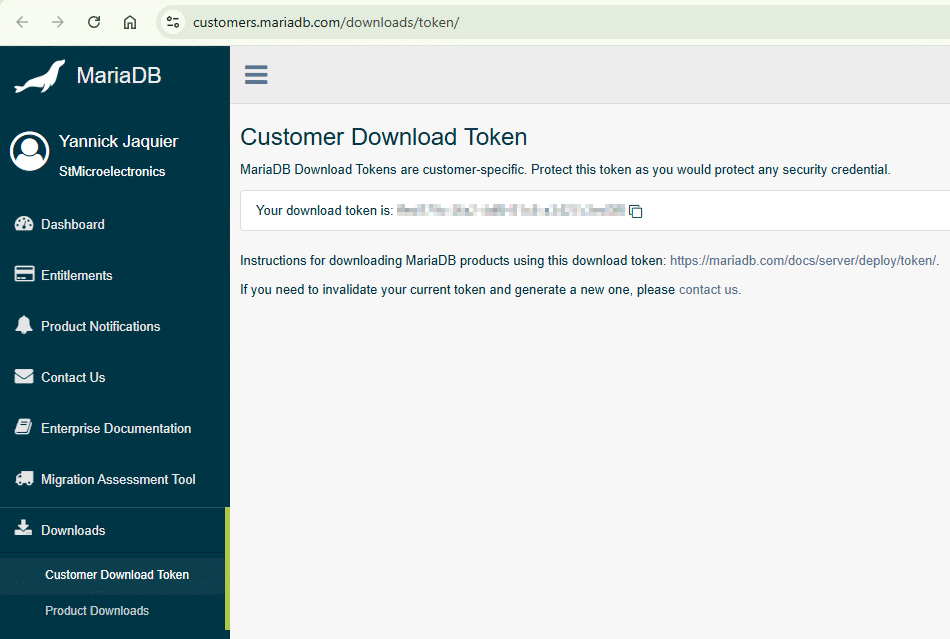
You can now login using this token as a password:
[mariadb@server03 ~]$ docker login docker.mariadb.com
Username: yannick.jaquier@sst.com
Password:
time="2026-02-05T16:33:03+01:00" level=info msg="Error logging in to endpoint, trying next endpoint" endpoint="{https://docker.mariadb.com 0xc00044cf00}" error="Get \"https://docker.mariadb.com/v2/\":
tls: failed to verify certificate: x509: certificate signed by unknown authority"
Get "https://docker.mariadb.com/v2/": tls: failed to verify certificate: x509: certificate signed by unknown authority
So I went to my desktop browser and exported the certificates:
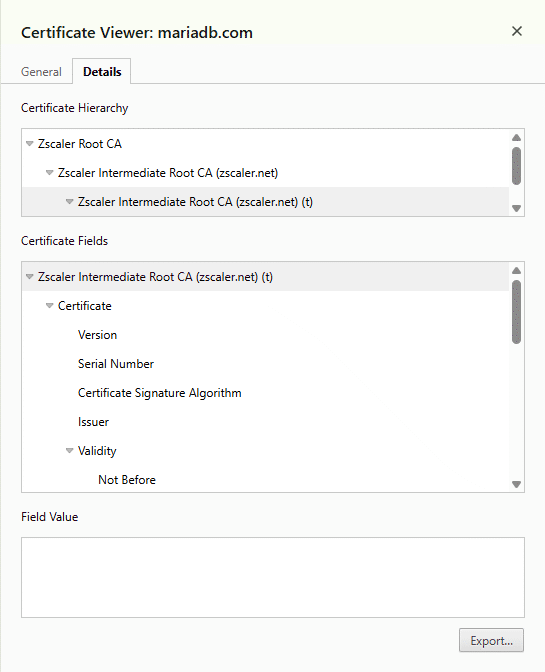
And uploaded them to /tmp of my server, to then load them globally:
[root@server03 ~]# ll /tmp/*.crt
-rw-r--r-- 1 yjaquier users 1884 Feb  5 16:47 '/tmp/Zscaler Intermediate Root CA (zscaler.net).crt'
-rw-r--r-- 1 yjaquier users 1596 Feb  5 16:47 '/tmp/Zscaler Intermediate Root CA (zscaler.net) (t)_.crt'
-rw-r--r-- 1 yjaquier users 1760 Feb  5 16:47 '/tmp/Zscaler Root CA.crt'
[root@server03 ~]# cp /tmp/*.crt /etc/pki/ca-trust/source/anchors/
[root@server03 ~]# update-ca-trust
Ensure all is good with something like:
[mariadb@server03 ~]$ docker login docker.mariadb.com
Username: yannick.jaquier@sst.com
Password:

WARNING! Your credentials are stored unencrypted in '/home/mariadb/.docker/config.json'.
Configure a credential helper to remove this warning. See
https://docs.docker.com/go/credential-store/

Login Succeeded
Download install script with and make it executable with:
[mariadb@server03 ~]$ wget -e use_proxy=yes -e https_proxy='http://proxy_account:proxy_password@proxy.mycorp.com:8080' https://dlm.mariadb.com/ffed179c-2fa2-4df9-81c8-a3427c3ed3f8/enterprise-release-helpers/install-enterprise-manager.sh
.
.
.
[mariadb@server03 ~]$ chmod a+x install-enterprise-manager.sh
As the install script is using curl to download a tool call oras I had to create this .curlrc (chmod 600):
proxy = "proxy_account:proxy_password@proxy.mycorp.com:8080"
insecure
Finally the installation script went as expected (notice the randomly generated password at the end):
[mariadb@server03 ~]$ ./install-enterprise-manager.sh
Downloading Enterprise Manager...
✓ Pulled      enterprise-manager.tar.gz                                                                                                       36.6/36.6 kB 100.00%   12ms
  └─ sha256:fb7a3d681fa48d587c559930903197cc8d52b2927504f6c3941f9d1155220b96
✓ Pulled      application/vnd.oci.image.manifest.v1+json                                                                                        587/587  B 100.00%  695µs
  └─ sha256:8d4b7990ba8e20e857be8c2ad2f7edf6f4e38525ebbb344b23c9991dd2cc1f79
Pulled [registry] docker.mariadb.com/enterprise-manager:latest
Digest: sha256:8d4b7990ba8e20e857be8c2ad2f7edf6f4e38525ebbb344b23c9991dd2cc1f79

Enterprise Manager must be configured with a public facing domain name or
IP address from which it is accessed by users.

Found IP addresses: 10.0.2.15 192.168.56.103 172.17.0.1
Enter the hostname or IP address (default: 10.0.2.15): 192.168.56.103
Enter the port that Enterprise Manager listens on (default: 8090):
Generating new TLS certificates...
..........+...+...+++++++++++++++++++++++++++++++++++++++*...+.......+.....+.+.....+....+.....+++++++++++++++++++++++++++++++++++++++*....+.....+....+.....+....+........+
....+.........+..............+..........+........+.........+................+..+.......+...+..++++++...+.+...............+.....+.........+......+.......+......+..+............+
.+..+....+...+..+...+......+....+++++++++++++++++++++++++++++++++++++++*......+...+...+..+...+.......+++++++++++++++++++++++++++++++++++++++*.+..+....+.....+.+........+.+.....+...+.......+.....+
Certificate request self-signature ok
subject=CN=192.168.56.103, O=MariaDB Enterprise Manager
[+] pull 5/5
 ! Image docker.io/nginx:1.29                                   Interrupted                                                                                               60.1s
 ✔ Image docker.io/grafana/grafana:12.1                         Pulled                                                                                                    1.9ss
 ✔ Image docker.io/prom/prometheus:v3.5.0                       Pulled                                                                                                    1.9ss
 ✔ Image docker.io/otel/opentelemetry-collector-contrib:0.135.0 Pulled                                                                                                    1.8ss
 ✘ Image docker.mariadb.com/supermax:latest                     Pulled                                                                                                   60.1s
[+] up 2/2
 ✔ Container enterprise-manager-supermax Created                                                                                                                          0.1s
 ✔ Container enterprise-manager-nginx    Created                                                                                                                          0.2s
[+] down 2/2
 ✔ Container enterprise-manager-supermax Removed                                                                                                                          0.4s
 ✔ Container enterprise-manager-nginx    Removed                                                                                                                          0.2s
[+] up 5/5
 ✔ Container enterprise-manager-supermax   Created                                                                                                                        0.2s
 ✔ Container enterprise-manager-grafana    Created                                                                                                                        0.4s
 ✔ Container enterprise-manager-otelcol    Created                                                                                                                        0.3s
 ✔ Container enterprise-manager-prometheus Created                                                                                                                        0.4s
 ✔ Container enterprise-manager-nginx      Created                                                                                                                        0.4s
Enterprise Manager has been installed.
Default username set to 'admin' and password to 'a8b8d9d1cf79587903523ca1390096570b2168aa5a'.
Go to: https://192.168.56.103:8090/
It created a bunch of containers:
[mariadb@server03 ~]$ docker ps
CONTAINER ID   IMAGE                                          COMMAND                  CREATED      STATUS       PORTS     NAMES
98599111b654   nginx:1.29                                     "/docker-entrypoint.…"   7 days ago   Up 3 hours             enterprise-manager-nginx
8a95e07fcc0c   prom/prometheus:v3.5.0                         "/bin/prometheus --c…"   7 days ago   Up 3 hours             enterprise-manager-prometheus
0675b2b367cf   grafana/grafana:12.1                           "/run.sh"                7 days ago   Up 3 hours             enterprise-manager-grafana
b52153e22132   otel/opentelemetry-collector-contrib:0.135.0   "/otelcol-contrib --…"   7 days ago   Up 3 hours             enterprise-manager-otelcol
f5c81fbeed4d   docker.mariadb.com/supermax:latest             "supermax --nodaemon…"   7 days ago   Up 3 hours             enterprise-manager-supermax
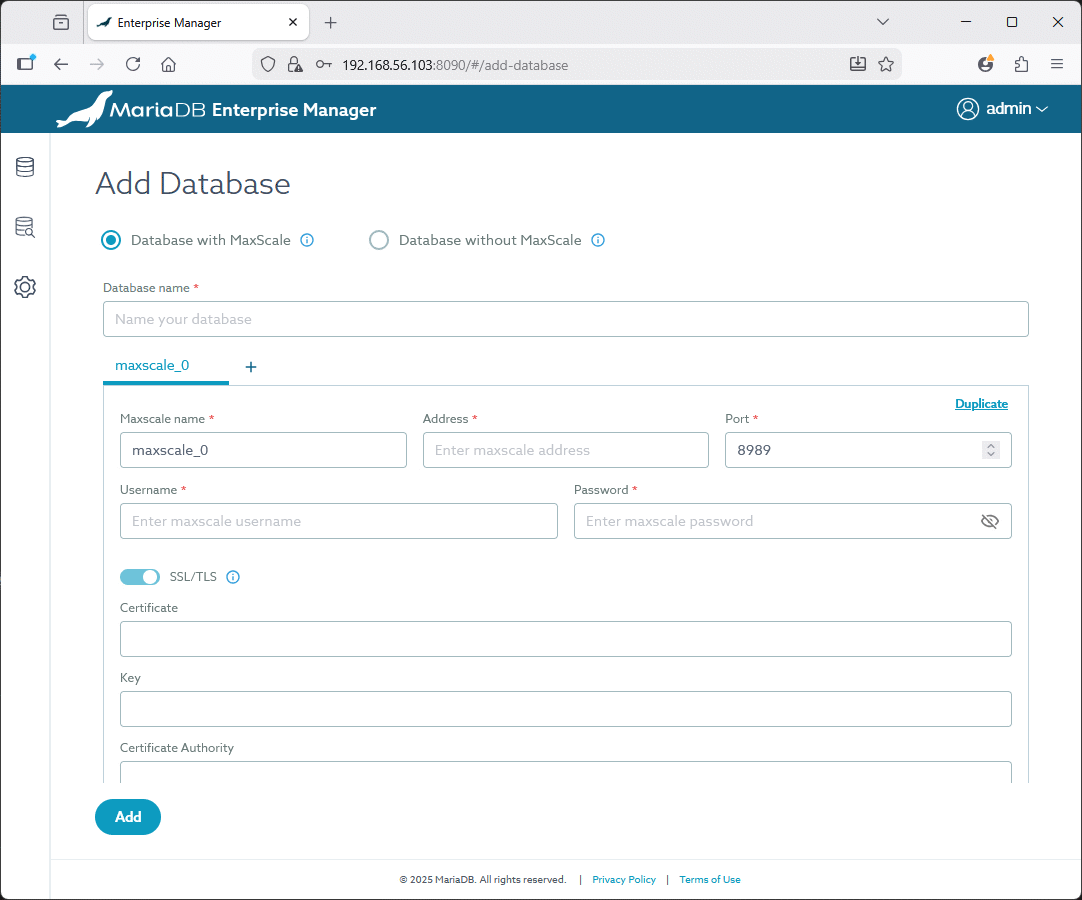
If you go now to the web interface the next step is now clear, add a database to monitor:
MariaDB Enterprise Manager agent setup
As explained in official documentation I install the mema-agent on my MariaDB test server (server01) with:
[root@server01 ~]# dnf install mema-agent-1.0.0-1.el8.x86_64.rpm
On this MariaDB server I create an account for MariaDB Enterprise Manager:
CREATE USER 'monitor'@'enterprise_manager_ip' IDENTIFIED BY 'secure_password';
GRANT REPLICA MONITOR ON *.* TO 'monitor'@'enterprise_manager_ip';
And a database account for the local mema agent to connect and grad the metrics:
CREATE USER 'monitor'@'localhost' IDENTIFIED BY 'secure_password';
GRANT PROCESS, BINLOG MONITOR, REPLICA MONITOR, REPLICATION MASTER ADMIN ON *.* TO 'monitor'@'localhost';
This part is a little bit broken, in my opinion, as creating the user @localhost as generated lots of errors in /var/lo/messages and in my MariaDB error files. I have not really find a dedicated MEMA agent log:
Feb  13 12:05:54 server01 mema-agent-mariadb-exporter[35356]: time=2026-02-13T12:05:54.186Z level=ERROR source=exporter.go:131 msg="Error opening connection to database"
err="Error 1045 (28000): Access denied for user 'monitor'@'::1' (using password: YES)"

2026-02-13 12:07:38 238 [Warning] Access denied for user 'monitor'@'::1' (using password: YES)
So I created a monitor@’::1′ account same as above:
CREATE USER 'monitor'@'::1' IDENTIFIED BY 'secure_password';
GRANT PROCESS, BINLOG MONITOR, REPLICA MONITOR, REPLICATION MASTER ADMIN ON *.* TO 'monitor'@'::1';
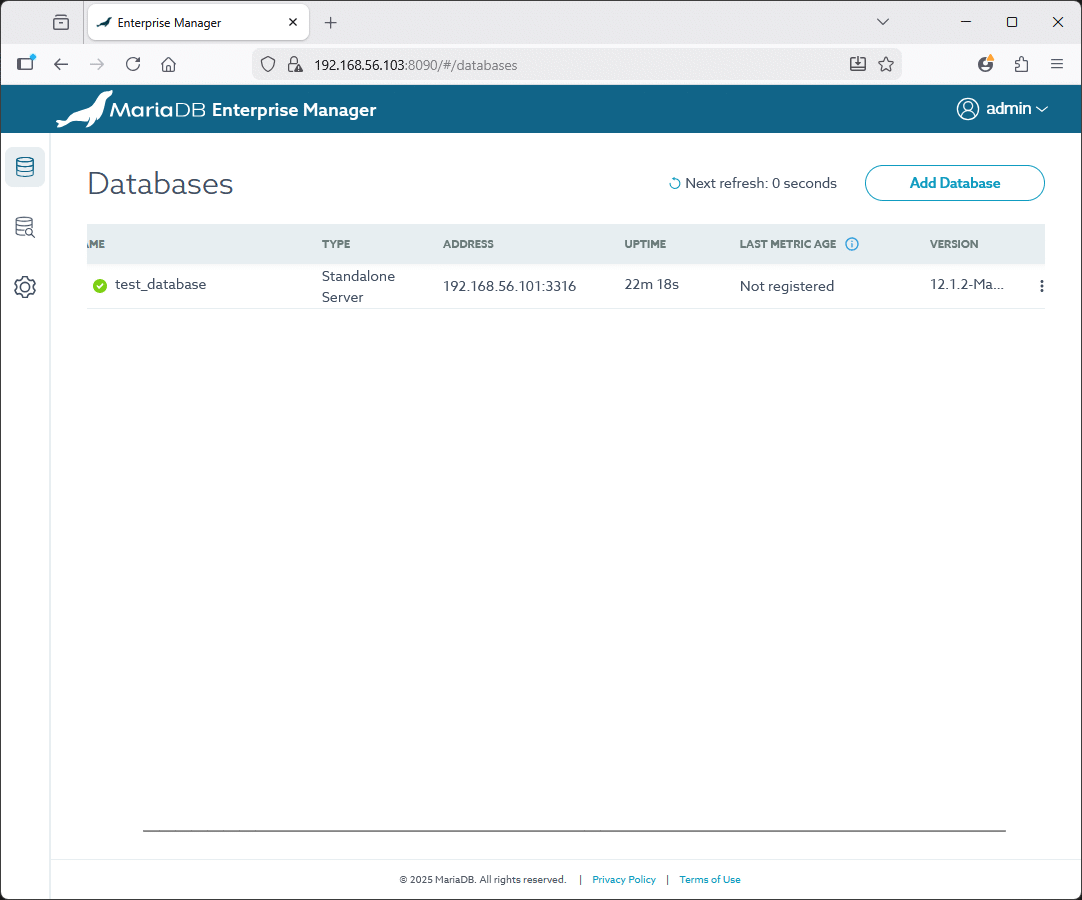
Add the database specifying the remote accessible account:
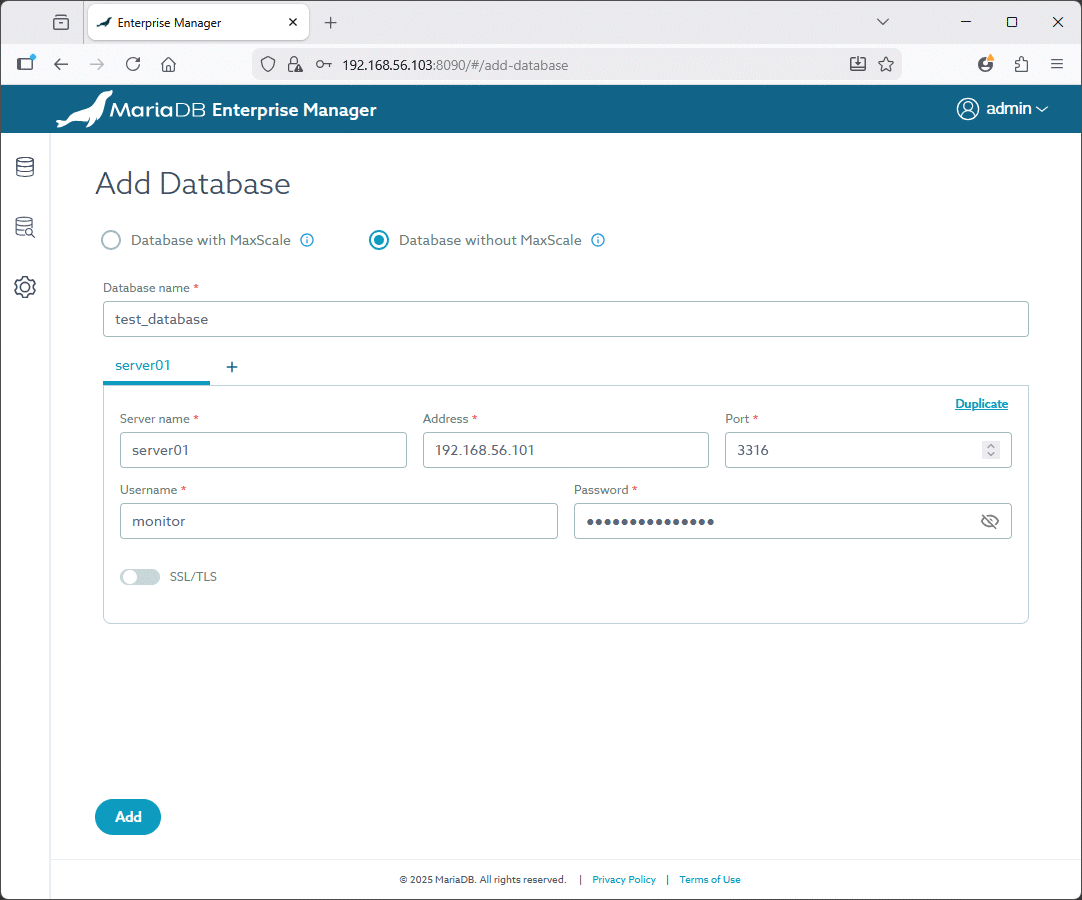
Once it has been added click on the three-dot menu (⋮), and select Install Agent:
Execute the provided command (as root) and check processes are running:
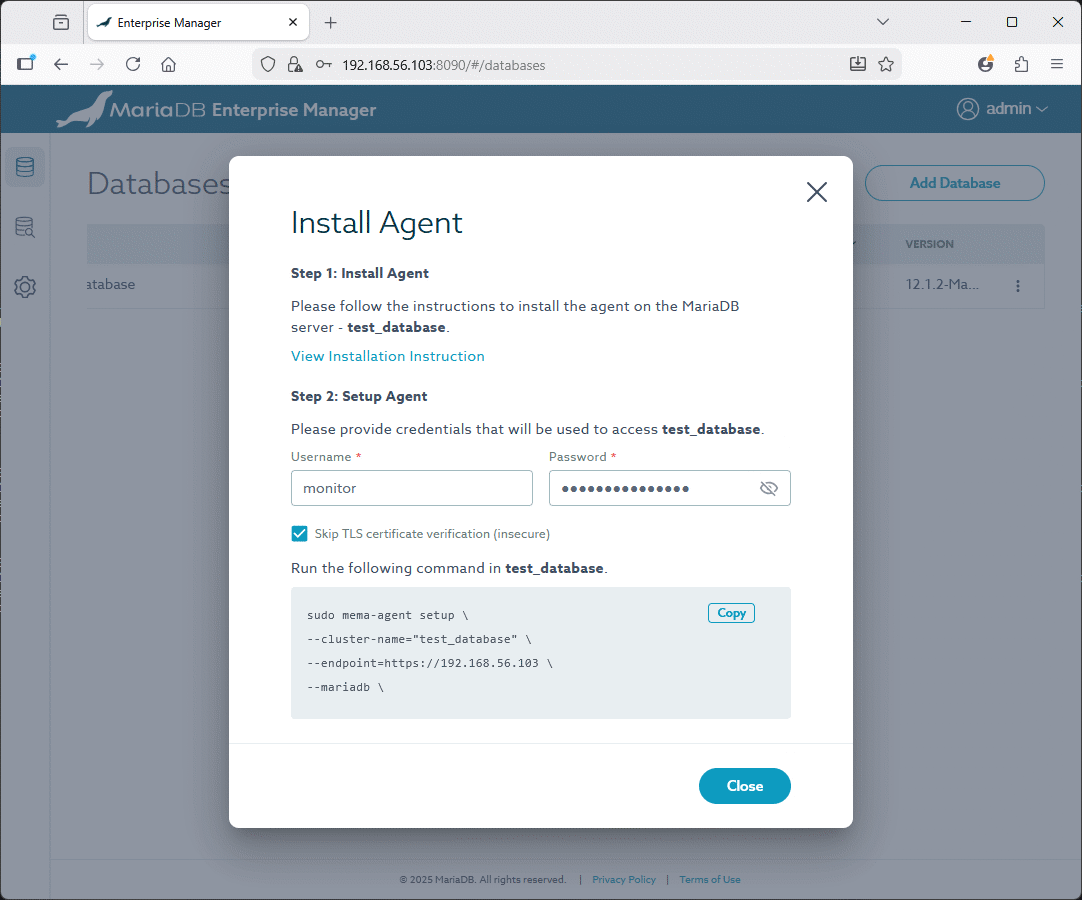
What I have executed is:
[root@server01 ~]# sudo mema-agent setup --cluster-name="test_database" --endpoint=https://192.168.56.103 --mariadb --host-name="test_database@server01" \
--mariadb-port=3316 --mariadb-user="monitor" --mariadb-password="secure_password" --otlp-insecure
After a while the instance is registered:
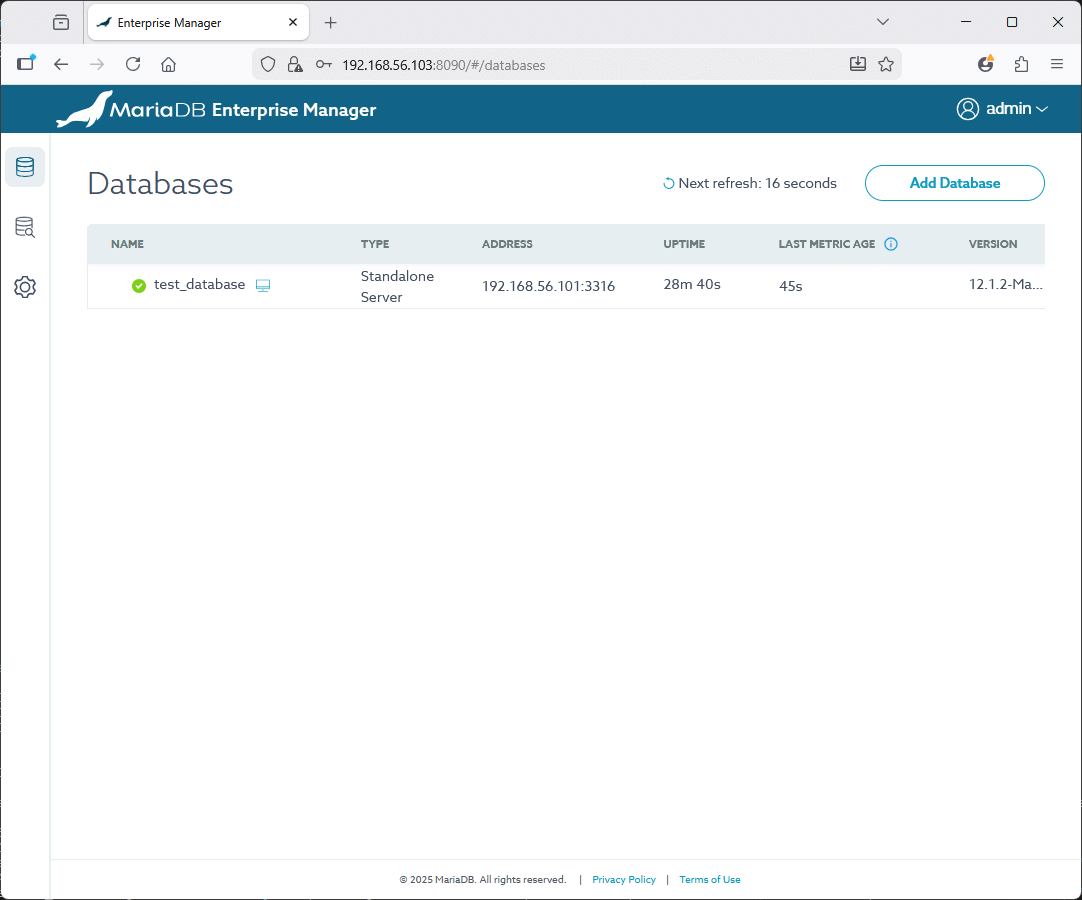
And you can access to MariaDB instance figures:
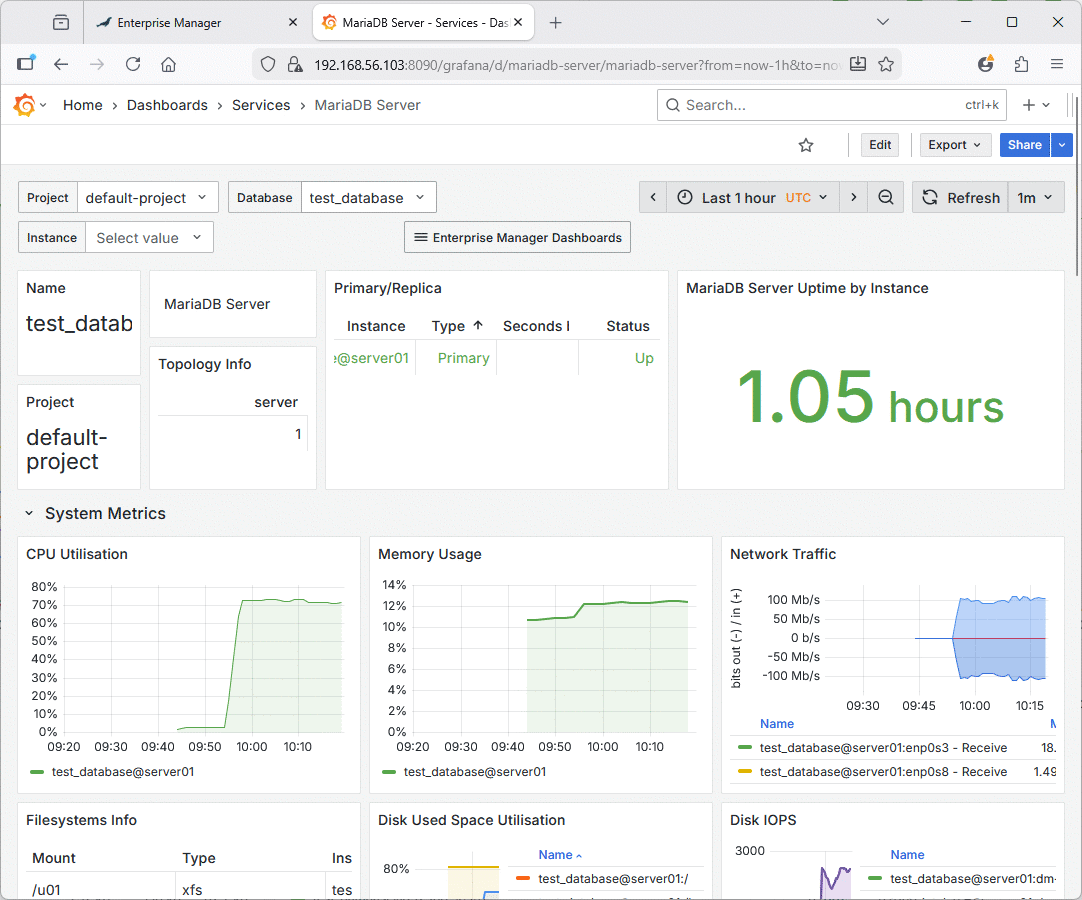
As well as node figures:
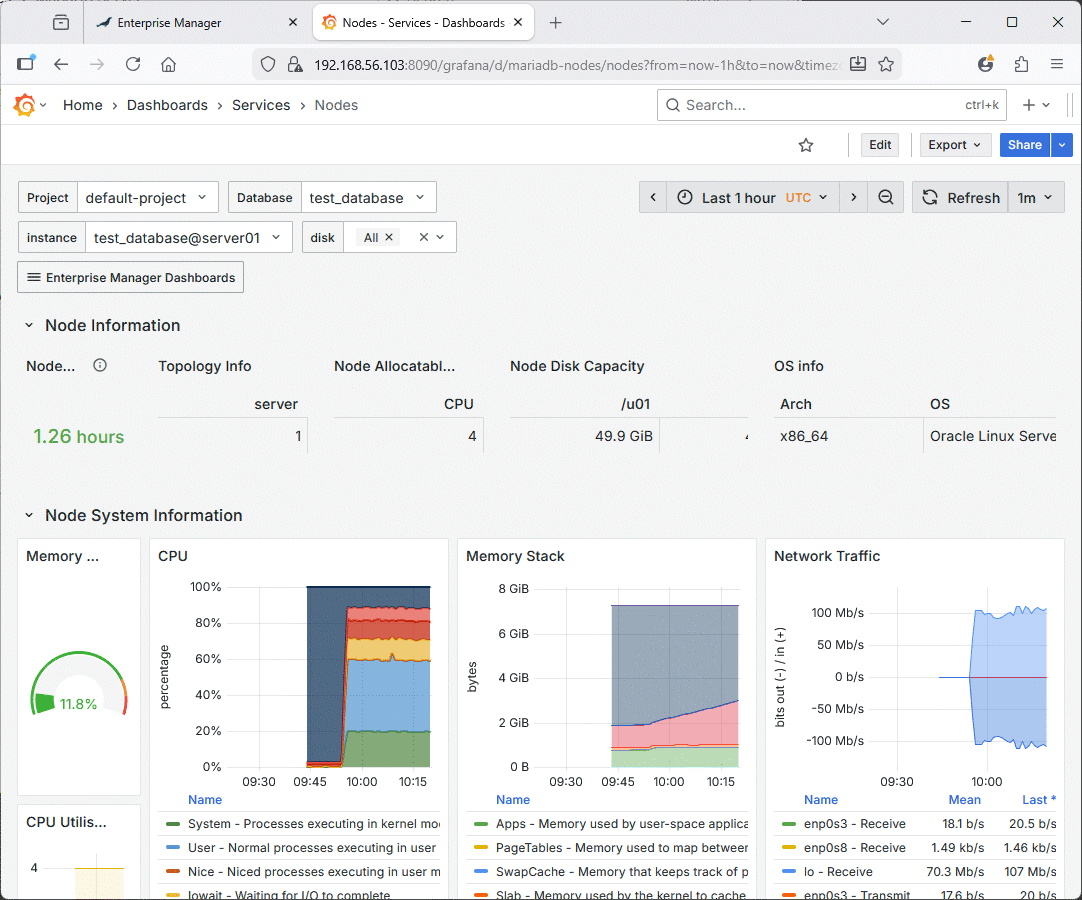
Remark:
To generate a bit of traffic and have nice graphs I have used Sysbench, see next chapter…
Sysbench to generate a bit of load
In order to have some nice graphs, I have used Sysbench to generate some load on my MariaDB database. Since I have last used Sysbench things changed a lot and options names and way to use the tool are almost completely different. The oltp_*.lua configuration files are located in the /usr/share/sysbench directory (sysbench /usr/share/sysbench/oltp_read_write.lua help).
First, I create a dedicated database and account with:
create database sbtest character set=utf8mb4 collate=utf8mb4_general_ci;
create user sbtest@'%' identified by "secure_password";
grant all privileges on sbtest.* to sbtest@'%';
flush privileges;
Create the OLTP Sysbench tables with:
sysbench /usr/share/sysbench/oltp_read_write.lua --threads=4 --mysql-host=server01.domain.com --mysql-port=3316 --mysql-user=sbtest \
--mysql-password=secure_password --mysql-db=sbtest --table_size=100000 --tables=20 prepare
Run the OLTP Sysbench test for 5 minutes with:
sysbench /usr/share/sysbench/oltp_read_write.lua --threads=4 --mysql-host=server01.domain.com --mysql-port=3316 --mysql-user=sbtest \
--mysql-password=secure_password --mysql-db=sbtest --table_size=100000 --tables=20 --time=300 run
Clean up the OLTP Sysbench tables with:
sysbench /usr/share/sysbench/oltp_read_write.lua --threads=4 --mysql-host=server01.domain.com --mysql-port=3316 --mysql-user=sbtest \
--mysql-password=secure_password --mysql-db=sbtest --table_size=100000 --tables=10 cleanup
References
- MariaDB Enterprise Manager Documentation
- MariaDB Enterprise Manager: The Native Way to Manage All Your MariaDB Environments (Blog)
About Post Author


